All stories · Article
Gemini can now sell your products. Here’s what Shopify stores need to check
Google has started rolling out UCP-powered direct checkout to Canadian shoppers using AI Mode and the Gemini app. The initial launch includes lululemon, Shoppers Drug Mart, Simons and select Shopify merchants.
Share: WhatsApp · Telegram · X · Facebook · LinkedIn · Email
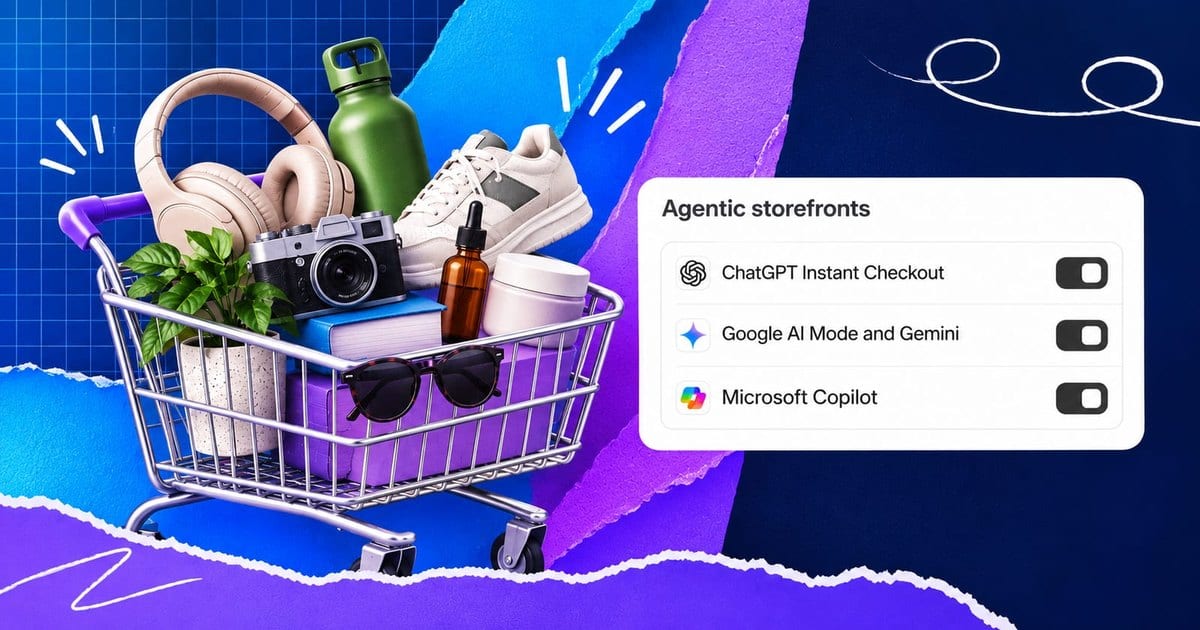
For eligible Shopify stores, customers can discover products in Gemini and complete their purchases through a Shopify-powered checkout without visiting the merchant’s website.
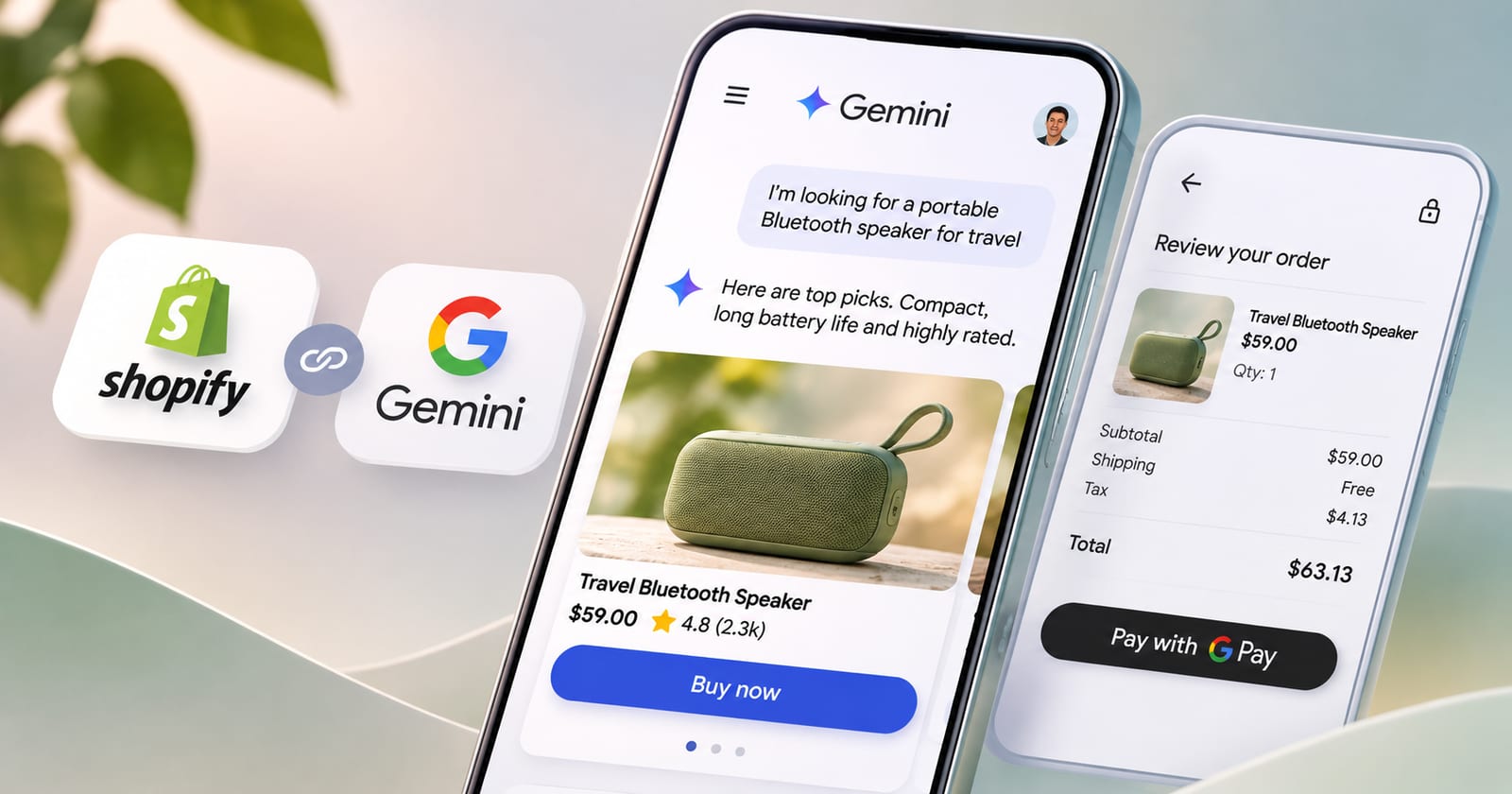
You don't need to build a UCP integration yourself. But you do need to check what Shopify has enabled, whether your products qualify, and which parts of your existing checkout experience won't carry over.
Here are six checks to make before deciding whether to keep Direct checkout enabled.
Is your store already selling in Gemini?
Not necessarily.
Google's November 4 announcement specifically mentions select Shopify merchants in its initial Canadian rollout. It does not mean every Shopify store can immediately accept orders through Gemini.
Shopify's Help Center says Google AI Mode and Gemini are rolling out gradually to eligible stores and Google users.
Source: Google Canada, November 4, 2026
Six checks for your Shopify store
1. Confirm that you sell to the supported markets
Shopify currently lists three eligible customer markets:
- United States
- Canada
- Australia
Your store can be based in another country, provided you sell to customers in at least one of these markets.
If you don't sell to any of them, you can stop here. You don't need to configure Google AI Mode and Gemini direct checkout.
Source: Shopify Help Center – Requirements
2. Check your Shopify Catalog eligibility
Go to:
Shopify admin → Sales channels → Agentic → Sources → Shopify Catalog
Look for the status displayed alongside Shopify Catalog.
- A product count: Your eligible products are included in Shopify Catalog.
- Ineligible: Your store currently has no products included in the Catalog. Click the status to see the reason.
Shopify Catalog eligibility matters because it determines whether eligible products can be made available to supported agentic storefronts through this catalog.
However, don't confuse Catalog eligibility with guaranteed product placement. Being included does not mean Gemini will display your products for every shopping query.
Source: Shopify – Shopify Catalog and product discovery
3. Check both Google & YouTube sync settings
Google AI Mode and Gemini use Google Merchant Center for product discovery.
If you're using Shopify's Google & YouTube sales channel, open its settings and check the Product feed section.
Make sure both settings are activated:
- Automatically sync products
- Automatically sync shipping information
The first keeps product information flowing from Shopify to Merchant Center. The second keeps your shipping information aligned.
If you already connect Merchant Center through a third-party feed provider or manual upload, you don't need to activate these Shopify sync settings.
Also review your product data mapping if you use metafields, metaobjects or custom product structures. Missing or incorrectly mapped information can affect how your products are represented.
Source: Shopify Help Center – Managing the Google AI Mode and Gemini channel
4. Complete your store policies and accept the terms
Shopify requires three store policies to be completed:
- Terms of service
- Privacy policy
- Return and refund policy
Find them under:
Shopify admin → Settings → Policies
You also need to read and accept the Shopify Agentic Storefronts Supplemental Terms of Service.
One detail worth checking: your return and refund information in Shopify should match what appears in Google Merchant Center.
Your product descriptions should also include relevant legal disclosures within the first 6,000 characters.
Source: Shopify Help Center – Requirements and considerations
5. Identify what won't work in direct checkout
This is where the decision becomes important.
Direct checkout does not reproduce every feature of your existing Shopify checkout.
Unsupported product types
- Products sold only as subscriptions.
- Product bundles.
- Customizable products.
- B2B-only products.
A product offering both one-time purchases and subscriptions can still be purchased as a one-time order, but customers cannot select the subscription option.
Features that may not carry over
- Google Analytics and custom pixels: client-side pixels won't fire during direct checkout.
- Checkout upsells and custom fields: some checkout blocks may not appear.
- Loyalty and rewards experiences.
- Trust badges, reviews and informational checkout blocks.
- Local delivery, in-store pickup and pickup points.
- Mandatory customer account sign-in.
Not everything disappears. Shopify Functions for shipping, discounts and checkout validation are supported, as are automatic discounts and discount codes.
If your store depends on an unsupported feature to complete an order, collect customer information or measure performance, you need to account for that before enabling direct checkout.
Source: Shopify Help Center – Unsupported features
6. Decide whether to keep Direct checkout enabled
You have two options.
Keep Direct checkout on
Customers can purchase directly inside Google AI Mode and Gemini without visiting your website.
This may make sense if your products use standard checkout flows and don't depend on unsupported features.
Turn Direct checkout off
Customers can still discover your products through Google AI Mode and Gemini, but they'll be redirected to your online store to complete their purchases.
This may be preferable if you rely on bundles, subscription-only products, custom checkout experiences or client-side tracking.
To change the setting:
- Go to Shopify admin → Sales channels → Agentic.
- Deactivate Allow Shopify to manage for me.
- Select Google AI Mode and Gemini.
- Activate or deactivate Direct checkout.
- Click Save.
Important: If you're using the Shopify Agentic plan, direct checkout is deactivated by default and requires a separate activation. Check your plan-specific setup before assuming the standard default applies.
Source: Shopify Help Center – Opt in or out of direct checkout | Agentic plan setup
Mistakes that are easy to make
| Common assumption | What actually happens |
|---|---|
| Turning off Direct checkout removes my products from Gemini. | Products can still be discovered; shoppers are redirected to your store. |
| Google Analytics will track the entire direct checkout. | Client-side pixels won't fire during that checkout. |
| Every Shopify checkout feature will carry over. | Some checkout blocks, product types and delivery methods are unsupported. |
| My store is eligible, so customers can already buy through Gemini. | Eligibility and customer-side rollout are separate. |
| My Shopify policies are enough. | Your Merchant Center information should match your Shopify policies. |
How to tell you're done
Before leaving your Shopify admin, confirm three things:
- Your Shopify Catalog status displays the expected product count.
- Your Google & YouTube product and shipping sync settings are correct, if you use that channel.
- Direct checkout is in the state you deliberately selected, and you've clicked Save.
You don't need to integrate UCP from scratch. You need to understand what you're allowing Google to handle on your behalf.
For a store with a straightforward product catalog and checkout, direct selling in Gemini may be an additional sales channel worth keeping open.
For a store that depends on subscriptions, bundles, custom checkout blocks or detailed client-side tracking, sending shoppers back to its own website may still be the better option.
The decision isn't whether to adopt UCP. It's whether your existing store experience can work without the parts that direct checkout leaves behind.
Sources · 5 · blog.google, help.shopify.com, searchenginejournal.com
- Google Canada – A new way to shop: Introducing a more intuitive, agentic shopping experience (November 4, 2026)
- Shopify Help Center – Selling on Google AI Mode and Gemini
- Shopify Help Center – Shopify Catalog and product discovery
- Shopify Help Center – Setting up agentic storefronts on the Agentic plan
- Search Engine Journal – Google Brings UCP Direct Checkout To AI Mode In Canada (November 2026)