All stories · Article
Shopify filters gone on 5,000+ product collections? What seller should do?
On October 30, 2026, racing-parts wholesaler 425Motorsports asked Shopify to remove a limit in Search & Discovery, Shopify's app for collection and search filters.
Share: WhatsApp · Telegram · X · Facebook · LinkedIn · Email
Some of its brand collections are larger than 5,000 products, so their filters don't render.
Asking for the cap to go is the obvious move.
There is a faster one, and it only matters if a collection holds more than 5,000 products. Check which collections sit over the line, split them by vendor and product type, and know the next ceiling before you rebuild anything. The trade-off is more collections to build and keep in your menu.
A brand over 5,000 products is the one shoppers can't narrow down
Filters turn off by collection size, so one store can have both kinds of brand page. On 425Motorsports' own store, Alpinestars has filters and Sparco doesn't, as the account Ploqo pointed out in a reply on the feature request thread.
Nothing in the thread points to a platform change: Ploqo said Shopify can't lift the 5,000 limit, and the thread's summary reports no official resolution.
The rule is written into the Shopify Help Center page on Search & Discovery filters: "Collections that contain more than 5,000 products don't display filters."
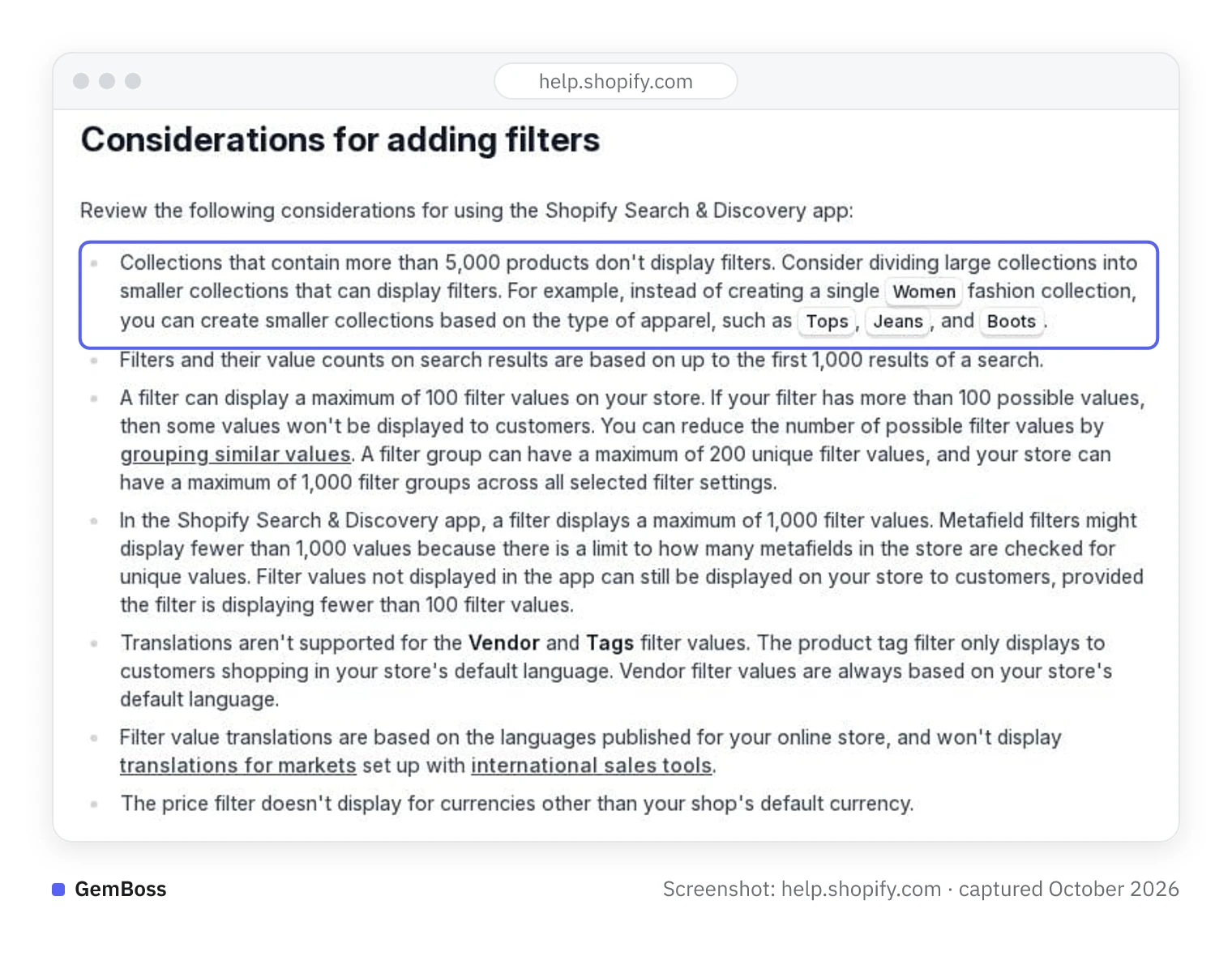
Considerations for adding filters on Shopify Help Center, captured in October 2026.
Its advice is to divide large collections. The example, though, comes from fashion: a Women fashion collection broken into Tops, Jeans and Boots. A catalog sold by brand has to be divided inside each brand.
Which of your collections are already over 5,000 products?
The count is already in your admin. The list on the Collections page shows how many items each collection holds, along with automatic selection conditions and sales channel counts, according to the Help Center page on searching and viewing your collections list.
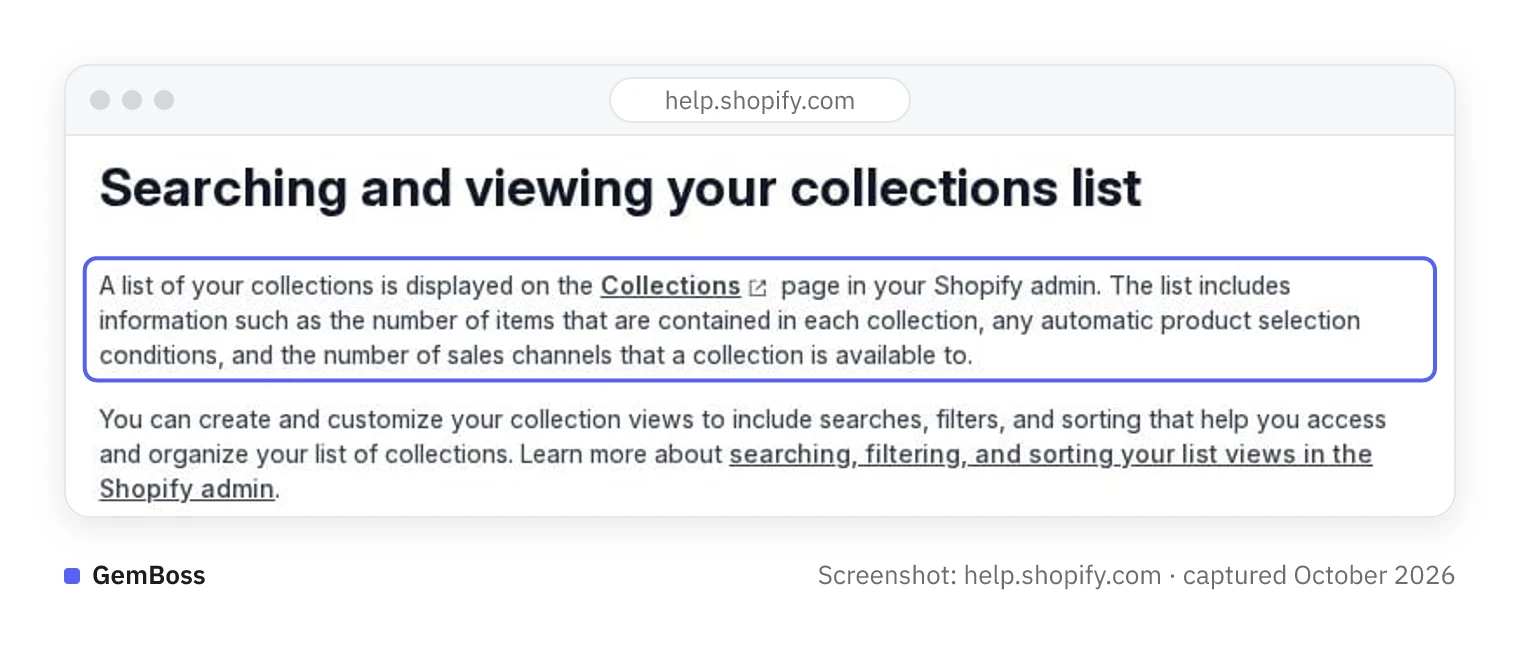
Searching and viewing your collections list on Shopify Help Center, captured in October 2026.
Read the brand collections first. They are the ones built to hold a full range. The line is "more than 5,000", so flag every brand above it, and any brand a large import could push across.
A store whose collections sit far below that number can skip the rest.
Split each brand by product type, then regroup it in the menu
The split uses two conditions per collection, following the steps in Ploqo's forum reply:
- Go to Products > Collections and click Add collection.
- Title it by brand and type, for example "Sparco - Helmets".
- Click Add condition, choose Vendor, and pick the brand.
- Click Add condition again, choose Type, and pick one product type. Keep Match all conditions selected, then click Save.
- Repeat for each product type until every collection is under 5,000 products.
- Open Content > Menus and add the new collections to your menu.
Match all is the setting that does the work: products must match every condition to be included, according to the Help Center page on collection conditions. With Match any, one condition is enough, which would pull in the whole brand and every product of that type.
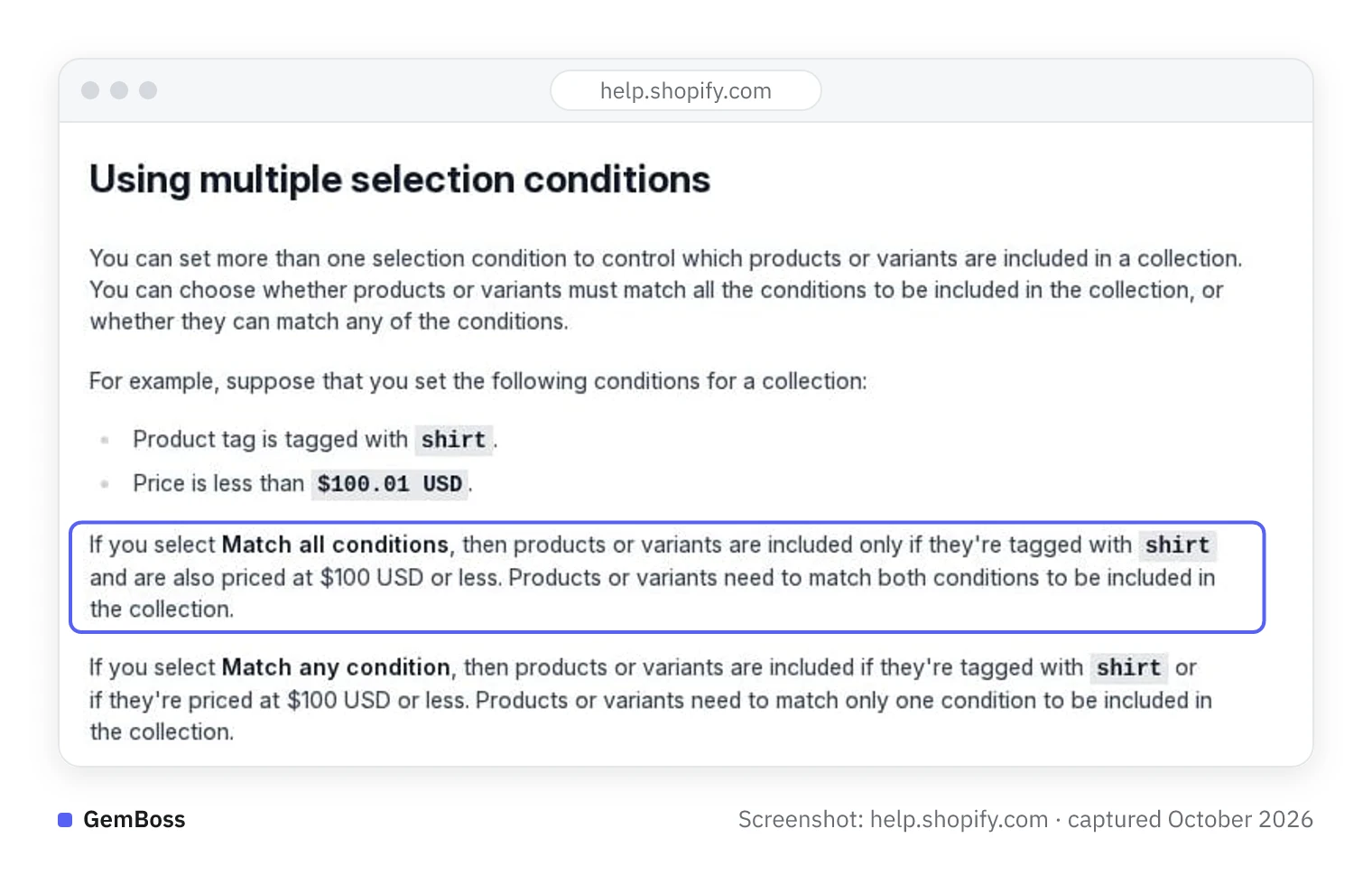
Using multiple selection conditions on Shopify Help Center, captured in October 2026.
Count the work before you start: each product type you split out is one more collection to build and keep in the menu.
Your admin may not look exactly like those steps: a new collections model is replacing legacy manual and smart collections, according to the Help Center collections overview. Adding collection links to your store's menus helps customers find them, the same page notes, so one menu entry per brand can hold all of that brand's new pieces.
A brand-and-type pair still past 5,000 could take a third condition, up to 60 per collection.
Once the split is done, where do filters still get cut?
The filter bar comes back, but it shows less than you might expect. Only the values that apply to the products being viewed are displayed, per the Help Center filters page. A collection built from one vendor and one type will likely show a single value in its Vendor and Product type filters.
Slots are worth planning, because there are only 25.
That is the store-wide maximum, standard and custom filters combined, and each filter source can be used once. The standard filters are Availability, Category, Price, Product type, Tags and Vendor. Beyond the slot count, these limits apply:
| Limit | Where it applies | What shoppers see |
|---|---|---|
| 100 values per filter | Any filter on your store | Some values are not displayed |
| More than 100,000 results | Search results page | Filters are hidden |
| First 1,000 results | Search results page | Filters and value counts are based on these only |
| 5,000 unique tag values; 1,000 for product options and attributes | Filter values | Values past the limit may not display |
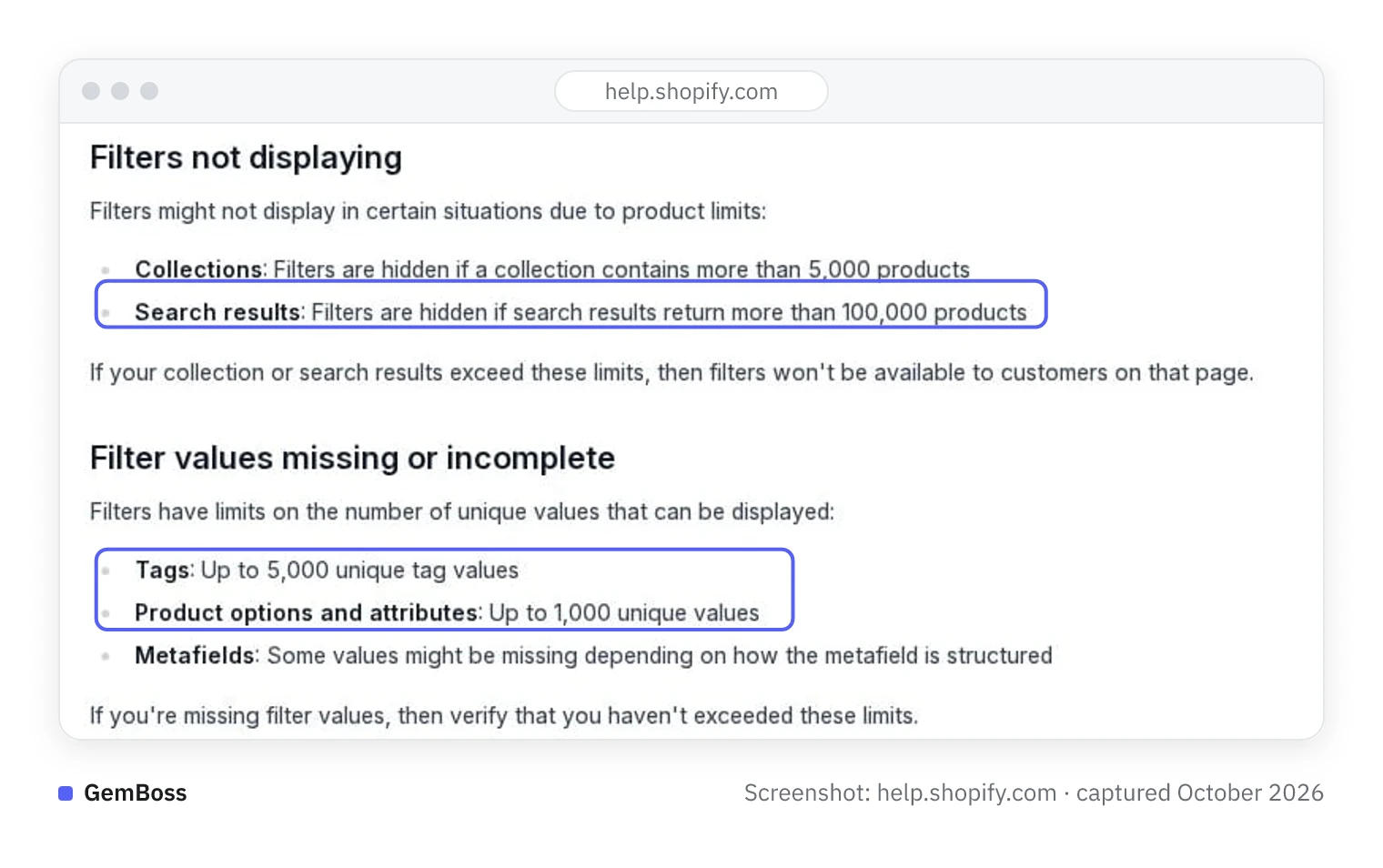
Troubleshooting filters on Shopify Help Center, captured in October 2026.
The 100-value cap can bite wherever one filter spans many brands, such as a Vendor filter on the search page or on a collection built by product type. With more than 100 brands in that filter, some would likely drop off. The Help Center's remedy is grouping several values into one, such as Onyx, Ebony and Midnight shown as Black; a group holds up to 200 values, and a store up to 1,000 groups.
The limit follows collection size, so the fix belongs to whoever builds the catalog.
Before the next import, open your collections list, note each brand collection above 5,000 items, and sketch its split by product type.
Sources
- asked Shopify to remove a limit in Search & Discovery · community.shopify.com
- Shopify Help Center page on Search & Discovery filters · help.shopify.com
- Help Center page on searching and viewing your collections list · help.shopify.com
- Help Center page on collection conditions · help.shopify.com
- Help Center collections overview · help.shopify.com